
Keybind Framework
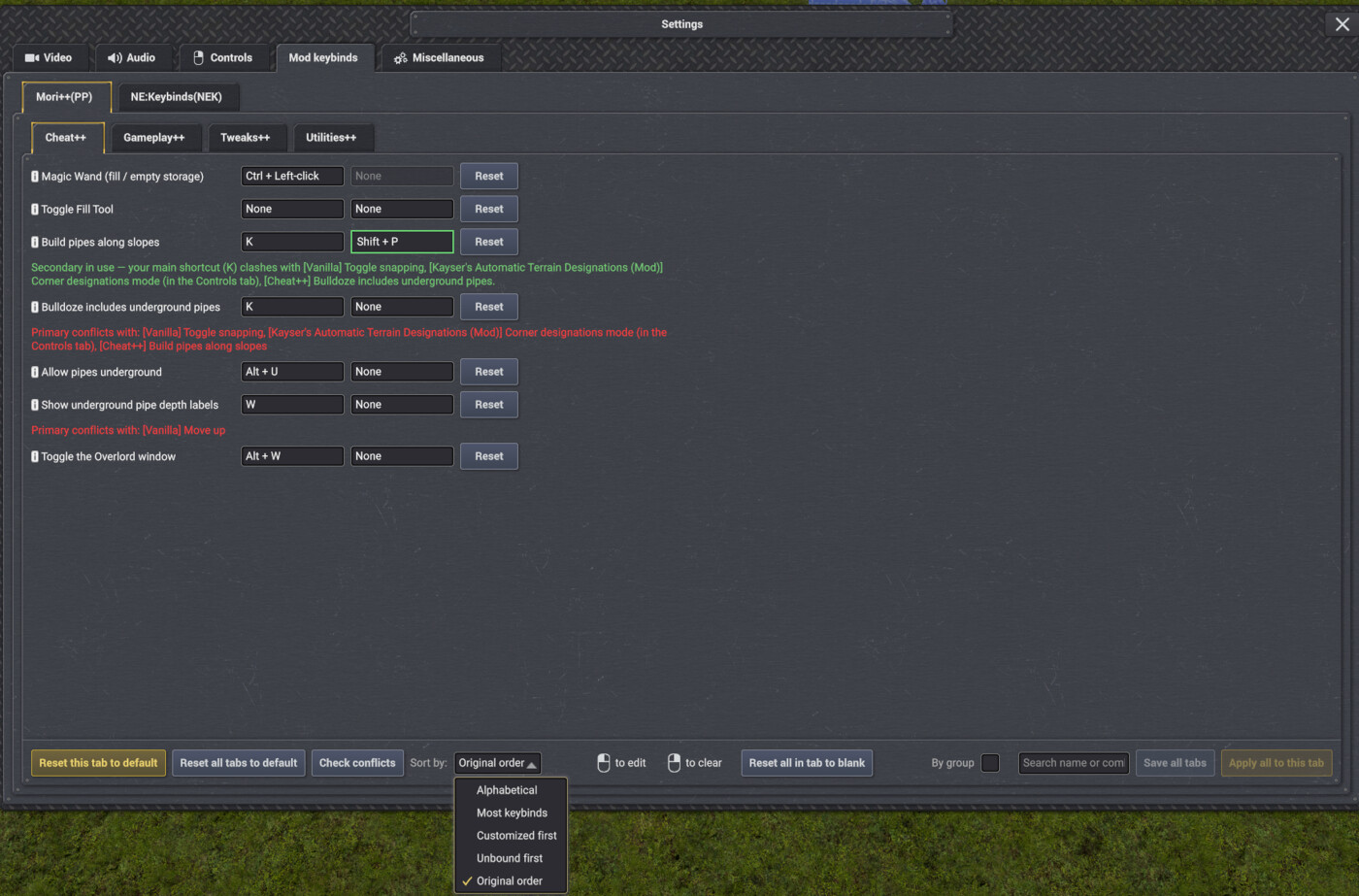
v2.0.4Adds a Mod keybinds tab to the Settings window that lists hotkeys from every mod built on this framework, each in its own sub-tab, and more
- Source code
- No source provided
- Website
- https://discord.com/channels/803508556325584926/1481370238112239616
- Tags
- Quality of Life Tweaks
Mods that now support Keybind Framework! (Click on names to go to the mods)
Adds a Mod keybinds tab to the Settings window that lists hotkeys from every mod built on this framework, each in its own sub-tab, and more
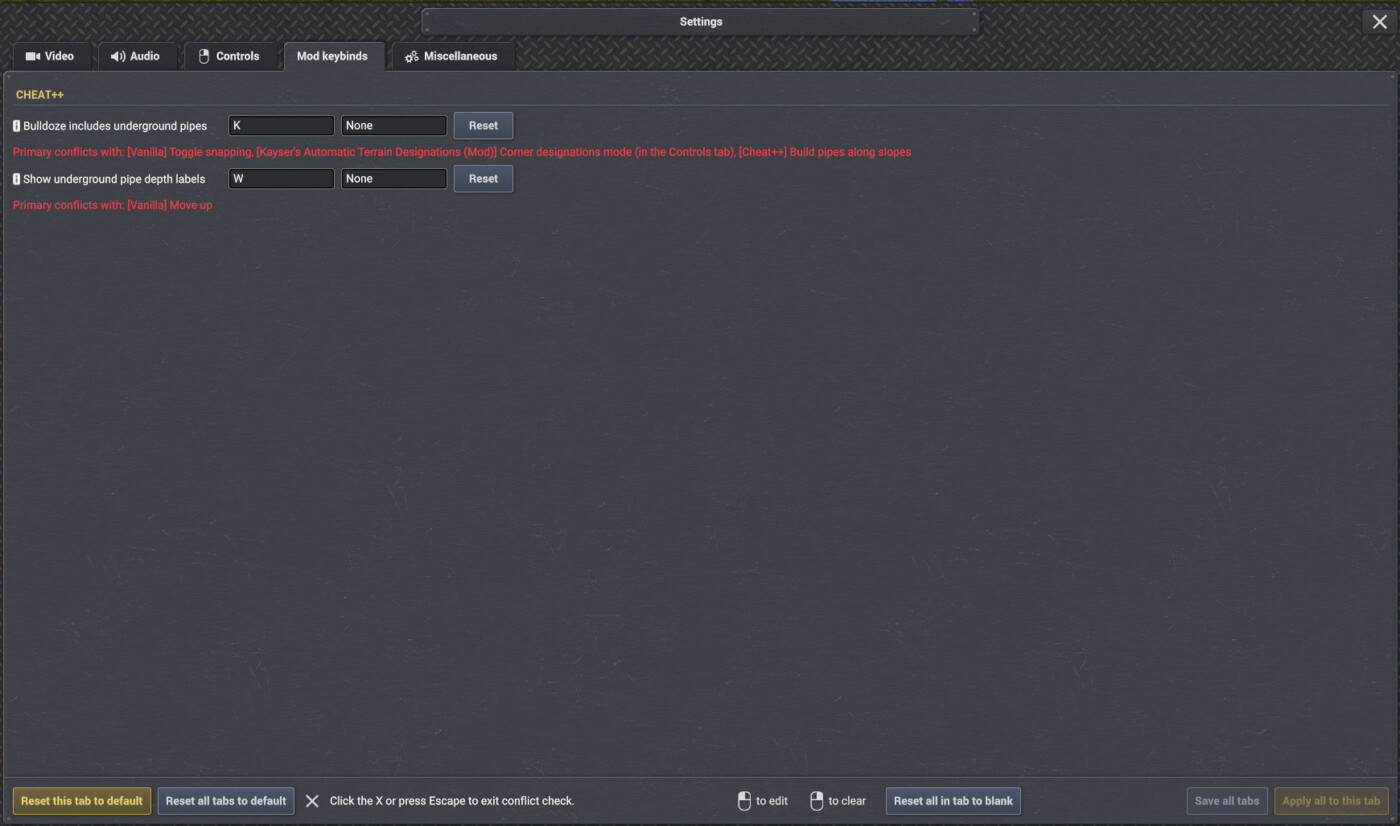
For Users this adds a way to rebind keybinds and let you know if any conflict. (See image under as example)
For modders see guide under images how to implement your keybinds to the framework. Or check included Guide inside the mod folder.
# Adding your mod to the Keybind Framework

The Keybind Framework is a standalone mod from Mori Suit mods. (`keybind-framework`) that gives
every mod's hotkeys one shared home: a **"Modded Keybinds"** tab in the game's Settings window,
right after Controls. Register your mod's keybinds with it and you get, for free:

- Your own tab in Settings (named after your mod), or a shared tab with your other mods if you want one
- Optionally, split a mod with lots of keybinds into its own sub-tabs by group, instead of one long scrolling list (see *split your own mod's keybinds into sub-tabs* below)
- A rebinding UI (click a field, press a new key, Apply)
- Primary + Secondary key slots — both fire, so the player can have two shortcuts for one action
- Automatic conflict detection against vanilla shortcuts **and every other mod** registered with the framework — the player is told exactly which mod owns the key they clashed with
- Optionally, hand your keybind straight to the game's own shortcut dispatcher — no input polling code in your mod at all (see *Skip the polling* below)

You talk to the framework purely through **reflection** — there is no DLL to reference and no
compile-time dependency. This means your mod keeps working fine even if a player doesn't have
the Keybind Framework installed; it just falls back to your own hard-coded default keys.

---

## What changed in framework 2.0.2 — re-check this guide

If you integrated before this version, three things need a small change on your side. Everything
else keeps working exactly as before.

1. **Both key slots now fire.** The Secondary slot used to be only a fallback, activating just
   when the Primary clashed with something. Now Primary and Secondary both fire, so a player can
   have two working shortcuts for one action. If you poll for input (Step 4) you must also read
   the second slot, using the new `GetComboSecondary` — otherwise your players set a second
   keybind and nothing happens, which is the single most-reported bug this change fixes. If you
   use the dispatcher instead (*Skip the polling* below), you get both slots with **no code
   change at all**.
2. **Left and right Ctrl / Shift / Alt are now separate keys.** `LeftControl + W` and
   `RightControl + W` are two different binds that do not clash. Your input check has to compare
   the exact side — the common "either Ctrl counts" style now fires on both sides and quietly
   throws away the player's choice.
3. **Right Alt and AltGr are the same key.** Windows has no separate AltGr key — it is the right
   Alt, and Unity reports `KeyCode.AltGr` for that key on every layout, including the many
   layouts (US, Canadian, UK) where the key is plain Alt and has no AltGr behaviour at all. The
   framework therefore stores it as `RightAlt` and accepts an older `AltGr` token as the same
   key. Your input check must treat the two names as one key, and ignore the LeftControl that
   Windows sends alongside AltGr on layouts that do have it — otherwise a plain `Ctrl + W` bind
   of yours also fires when the player presses AltGr + W. **Never test `KeyCode.AltGr` on its
   own:** Unity sets it from the generic Alt, so it is true for the LEFT Alt as well. Test
   `KeyCode.RightAlt` and use AltGr only as a fallback when no left Alt is down — see
   `RightAltDown()` in the sample below.

The Step 4 snippet and the Full example at the end of this guide are already updated for all
three. If you integrated from an older copy, take them again from here.

---

## Step 1 — Declare it as an optional dependency

In your mod's `manifest.json`, add:

```json
"optional_mod_dependencies": ["keybind-framework"]
Use optional_mod_dependencies, never mod_dependencies. A mandatory dependency will grey out your mod on a player's existing save if they don't have the framework installed. Optional means your mod loads and works fine on its own either way.
Step 2 — List your keybinds
Describe each keybind as a row of 7 plain strings:
{ id, label the player sees, type, default combo, gesture hint, group heading, tooltip }
| Field | Meaning |
|---|---|
id |
A short internal name only your mod uses, e.g. "MyMod_OpenWindow". Never shown to the player. |
label |
The text the player sees next to the keybind field. |
type |
"Discrete" for a normal key press, or "Modifier" for a held key (like Ctrl) combined with a mouse action. |
default combo |
The key(s) it's bound to out of the box. One key: "G". Several keys: join with " + ", e.g. "LeftControl + M". Names must match Unity's KeyCode enum exactly (LeftControl, LeftShift, LeftAlt, Insert, PageUp, letters/numbers as-is, etc). Sides are meaningful: "LeftControl + M" means the left Ctrl specifically, and "RightControl" / "RightShift" / "RightAlt" are valid too — pick left-side unless you have a reason not to, since that is what most players reach for. "AltGr" is accepted too and means the same key as "RightAlt". |
gesture hint |
Only used for "Modifier" rows — short text describing what to do while holding it, e.g. "Left-drag" or "Left-click". Leave "" for "Discrete" rows. |
group heading |
Optional. Bindings that share the same group text get a yellow subheading above them in your tab (exactly like the "Tools" / "View/Layers" headings in the Mori++ tab). Leave "" for a flat list with no headings. |
tooltip |
Optional. If set, the player sees a small "i" next to the label — hovering shows this text. Leave "" for no tooltip. |
Example — three keybinds, two of them sharing a group heading:
private static readonly string[][] Descriptors =
{
    new[] { "MyMod_OpenWindow",   "Open My Cool Mod window", "Discrete", "LeftControl + M", "",           "Windows", "Opens the main window." },
    new[] { "MyMod_QuickAction",  "Do the quick action",     "Discrete", "G",                "",           "Actions", "Runs the quick action on the selected building." },
    new[] { "MyMod_PaintModifier","Paint mode",               "Modifier", "LeftAlt",          "Left-click", "Actions", "Hold and left-click tiles to paint them." },
};
This renders as your own tab titled after your mod, with a "Windows" heading over the first row and an "Actions" heading over the other two.
Step 3 — Register when your mod loads
Call this once from IMod.Initialize (not RegisterPrototypes — by Initialize every mod assembly, including the framework's, is guaranteed to be loaded):
private const string MOD_ID = "my-cool-mod";     // your manifest.json "id"
private const string DISPLAY = "My Cool Mod";     // shown as your tab's title
private const string SEP = "~|~";

private static MethodInfo s_getCombo;
private static MethodInfo s_getComboSecondary;
private static bool s_initialized;

public static void Register()
{
    if (s_initialized) return;
    s_initialized = true;
    try
    {
        Type apiType = null;
        foreach (var asm in AppDomain.CurrentDomain.GetAssemblies())
        {
            apiType = asm.GetType("KeybindFramework.KeybindFrameworkApi");
            if (apiType != null) break;
        }
        if (apiType == null) return; // framework not installed - your mod just keeps its own defaults

        s_getCombo = apiType.GetMethod("GetCombo", new[] { typeof(string), typeof(string) });
        s_getComboSecondary = apiType.GetMethod("GetComboSecondary", new[] { typeof(string), typeof(string) });
        var reg = apiType.GetMethod("RegisterRaw", new[] { typeof(string), typeof(string), typeof(string[]) });
        if (reg == null) return;

        var rows = new List<string>();
        foreach (var d in Descriptors)
            rows.Add(string.Join(SEP, new[] { d[0], d[1], d[2], d[3], d[4], d[5], "", d[6] }));
        reg.Invoke(null, new object[] { MOD_ID, DISPLAY, rows.ToArray() });
    }
    catch { }
}
A couple of things worth knowing:
RegisterRawmust be looked up with its exact parameter types (GetMethod("RegisterRaw", new[] { typeof(string), typeof(string), typeof(string[]) })), not just by name — the framework has more than one method calledRegisterRaw, and a name-only lookup throws.- The empty
""in the middle of the row is a default for the Secondary key. You don't have to set one — leave it""and the player can fill it in themselves — but you may ship a second default combo there if your action deserves two shortcuts out of the box. See Two slots, both live below. GetComboSecondarycomes backnullon framework versions older than 2.0.2. That's fine — the helper in Step 4 falls back to"None", and your mod behaves exactly as it did before.- Everything is wrapped in
try/catchso a missing or older framework DLL can never crash your mod.
Step 4 — Read the player's chosen key
Cache GetCombo once in Register() (already done above), then check it whenever you poll for input:
private static string ComboFor(string id, string fallbackDefault)
{
    try
    {
        if (s_getCombo != null)
        {
            var c = s_getCombo.Invoke(null, new object[] { MOD_ID, id }) as string;
            if (!string.IsNullOrEmpty(c)) return c;
        }
    }
    catch { }
    return fallbackDefault; // framework absent or key not found - use your own default
}
GetCombo always returns the combo that's actually in effect right now, including any rebind the player made. You never need to check overrides yourself.
But GetCombo is only the first slot. Every "Discrete" keybind also has a Secondary slot, and it fires independently — so read it too, with the same shape:
private static string SecondaryComboFor(string id)
{
    try
    {
        if (s_getComboSecondary != null)
        {
            var c = s_getComboSecondary.Invoke(null, new object[] { MOD_ID, id }) as string;
            if (!string.IsNullOrEmpty(c)) return c;
        }
    }
    catch { }
    return "None"; // framework absent or older than 2.0.2 - no second slot, nothing extra fires
}
Then your input check tries the first slot and, failing that, the second — see IsPressed in the Full example. Skip this and your players will set a second keybind and find it does nothing.
GetComboSecondary returns "None" when there is nothing extra to fire — including the case where the framework has already switched the player over to the Secondary because their Primary clashed. So you never double-fire, and you never have to reason about which slot is "active".
Play nice while the player is typing a new key
While a player is capturing a new binding in Settings, raw key presses are still visible to your mod's own input checks — so without a guard, typing "Ctrl" to set a new binding could also fire your own Ctrl-based hotkey elsewhere in the game. Bail out at the top of your input check with:
if (AppDomain.CurrentDomain.GetData("MoriPP_KeybindCapturingFrame") is int cf && Time.frameCount - cf <= 1)
    return false;
This flag is set by the framework only while a rebind capture is actually in progress, and it expires automatically after one frame, so it's safe to check unconditionally every time.
You do not need to do anything about text boxes. The framework already stops all keybinds from firing while the player is typing in a search box or any other input field — the game's own building search included — and that happens whether or not your mod checks the flag above.
Optional: skip the polling — let the game fire your keybind
If a keybind is a simple "press it once, something happens" action, you don't have to write any input polling at all. The game has its own dispatcher for this — IUnityInputMgr.RegisterGlobalShortcut— and the framework can hand it the player's current combo as a ready-made KeyBindings.
This path is press-only. It cannot see a key being held or released — so any hold-style keybind, and every "Modifier" row, must keep using polling instead (Step 4 plus IsHeld in the full example below). Use this section only for plain press-and-fire actions.
private static MethodInfo s_getKeyBindings;

// in Register(), next to s_getCombo:
s_getKeyBindings = apiType.GetMethod("GetKeyBindings", new[] { typeof(string), typeof(string) });
private static KeyBindings BindingsFor(string id, KeyBindings fallback)
{
    try
    {
        if (s_getKeyBindings != null)
            return (KeyBindings)s_getKeyBindings.Invoke(null, new object[] { MOD_ID, id });
    }
    catch { }
    return fallback; // framework absent or older - your own default fires instead
}
Then wire it up once from IMod.Initialize:
public void Initialize(DependencyResolver resolver, bool gameWasLoaded)
{
    MyKeybinds.Register();
    var inputMgr = resolver.Resolve<IUnityInputMgr>();
    inputMgr.RegisterGlobalShortcut(
        m => MyKeybinds.BindingsFor("MyMod_OpenWindow",
            KeyBindings.FromPrimaryKeys(KbCategory.Camera, ShortcutMode.Game, KeyCode.LeftControl, KeyCode.M)),
        (Func<bool>)(() => { OpenWindow(); return true; }));
}
How it behaves:
- The function you pass in is re-read every time the game checks input, so a rebind the player makes in Settings applies instantly — no re-registering, no restart needed.
- Both key slots fire on this path for free. The framework fills in the game's own Primary and Secondary fields, so a player who sets two shortcuts gets both, with no extra code in your mod. This is the main reason to prefer this path over polling where your keybind allows it.
- The game won't fire it while the player is typing in a text field, and the framework keeps it quiet during rebind capture automatically — the
MoriPP_KeybindCapturingFramecheck from the previous section is not needed on this path. - The
fallbackis what fires when the framework isn't installed — build it withKeyBindings.FromKey(...)/FromPrimaryKeys(...)so it matches your row's default combo. Use any category exceptKbCategory.General(General keys sit outside the game's longer-combo-wins handling). - If
GetKeyBindingscomes backnull, the player is running an older framework version — fall back to the polling from Step 4. - If the key should open/close a window of yours, pass your
WindowControlleritself as the second argument instead of a callback — that's the same overload the game uses for its own windows.
Conflicts are automatic — and they name the other mod
You don't write any conflict-detection code yourself. The moment you register, every combo you use is checked against vanilla shortcuts and every other mod's registered keybinds. If two mods end up on the same key, the player sees a note right under the keybind field, naming the exact other mod and its keybind label, for example:
Conflicts with: [Tweaks++] Toggle the Tweaks++ window
— never just a bare "conflict". This works the same way whether the clash is with a vanilla shortcut ([Vanilla] ...) or with any other mod built on the framework, including yours.
Two slots, both live
Every "Discrete" keybind gets a Secondary slot in the UI for free, next to the Primary. The two are independent: whatever the player puts in each one fires, so they can keep Ctrl + M and RCtrl + M — or a completely different combo — on the same action at once.
There is one exception, and it works in your favour. If the player's Primary clashes with a vanilla shortcut or another mod, and their Secondary is clash-free, the framework quietly moves them over to the Secondary and says so in the UI. In that case only the Secondary fires, so you never trip the clash.
What this means for your code:
- Dispatcher path (Skip the polling): nothing to do, both slots already fire.
- Polling path: read
GetComboandGetComboSecondaryand fire if either matches, as Step 4 and the Full example show.GetComboSecondaryhandles the exception above for you by returning"None"whenever the second slot shouldn't fire separately.
Optional: share one tab across several of your mods
By default your mod gets its own tab. If you ship more than one mod and want them to share a single tab — exactly how the four Mori++ mods all share one "Mori++" tab — pass a bundle name as a 4th argument instead of the 3-arg call above:
var reg = apiType.GetMethod("RegisterRaw", new[] { typeof(string), typeof(string), typeof(string[]), typeof(string) });
reg.Invoke(null, new object[] { MOD_ID, DISPLAY, rows.ToArray(), "My Studio's Mods" });
Every mod that registers with the same bundle name gets its own sub-tab inside that one shared tab, instead of a separate top-level tab each — exactly how Cheat++, Gameplay++, Tweaks++, and Utilities++ each show up as their own sub-tab inside "Mori++" rather than one long scrolling list.
Optional: split your own mod's keybinds into sub-tabs
If your mod has a lot of keybinds — dozens or even hundreds — one long scrolling list gets unwieldy fast. Pass groupsAsTabs: true and every distinct group heading you already use (Step 2) becomes its own sub-tab instead of just a heading, so players click between smaller focused tabs instead of scrolling past everything. Bindings left with no group land in a catch-all "General" tab.
Use the 5-arg RegisterRaw overload instead of the 3-arg one from Step 3 (again, look it up by its exact parameter types — the framework has several RegisterRaw overloads):
var reg = apiType.GetMethod("RegisterRaw", new[] { typeof(string), typeof(string), typeof(string[]), typeof(string), typeof(bool) });
reg.Invoke(null, new object[] { MOD_ID, DISPLAY, rows.ToArray(), null, true });
Pass null for the bundle argument (4th position) if you don't also want to share a tab with other mods — or your bundle name if you want both at once: a labelled sub-tab per bundle member, with that member's own keybinds further split into sub-tabs by group.
Each group sub-tab is fully self-contained — its Reset all / Apply all only ever touches that one group's keybinds, never the rest of your mod.
Full example
This uses the full 5-arg RegisterRaw signature so you can see the bundle and groupsAsTabsswitches from the two Optional sections above in place — both are set to "off" here (null / false), which is the plain single-tab behavior. Flip either one to opt in.
using System;
using System.Collections.Generic;
using System.Reflection;
using UnityEngine;
namespace MyCoolMod
{
internal static class MyKeybinds
{
private const string MOD_ID = "my-cool-mod";
private const string DISPLAY = "My Cool Mod";
private const string SEP = "~|~";
// id, label, type, default combo, gesture hint, group, tooltip
private static readonly string[][] Descriptors =
{
new[] { "MyMod_OpenWindow", "Open My Cool Mod window", "Discrete", "LeftControl + M", "", "Windows", "Opens the main window." },
new[] { "MyMod_QuickAction", "Do the quick action", "Discrete", "G", "", "Actions", "Runs the quick action on the selected building." },
new[] { "MyMod_PaintModifier", "Paint mode", "Modifier", "LeftAlt", "Left-click", "Actions", "Hold and left-click tiles to paint them." },
};
private static MethodInfo s_getCombo;
private static MethodInfo s_getComboSecondary;
private static bool s_initialized;
public static void Register()
{
if (s_initialized) return;
s_initialized = true;
try
{
Type apiType = null;
foreach (var asm in AppDomain.CurrentDomain.GetAssemblies())
{
apiType = asm.GetType("KeybindFramework.KeybindFrameworkApi");
if (apiType != null) break;
}
if (apiType == null) return;
s_getCombo = apiType.GetMethod("GetCombo", new[] { typeof(string), typeof(string) });
s_getComboSecondary = apiType.GetMethod("GetComboSecondary", new[] { typeof(string), typeof(string) });
// 5-arg overload: (modId, displayName, bindings, bundle, groupsAsTabs)
// bundle: a shared name (e.g. "My Studio's Mods") to share one tab with your
// other mods, each as its own sub-tab - or null for just your own tab.
// groupsAsTabs: true turns each distinct group heading in Descriptors above into its
// own sub-tab instead of just a heading - handy once you have a lot of
// keybinds. false (or the 3-arg overload) keeps today's single flat tab.
var reg = apiType.GetMethod("RegisterRaw", new[] { typeof(string), typeof(string), typeof(string[]), typeof(string), typeof(bool) });
if (reg == null) return;
var rows = new List<string>();
foreach (var d in Descriptors)
rows.Add(string.Join(SEP, new[] { d[0], d[1], d[2], d[3], d[4], d[5], "", d[6] }));
reg.Invoke(null, new object[] { MOD_ID, DISPLAY, rows.ToArray(), null, false });
}
catch { }
}
private static string ComboFor(string id, string fallbackDefault)
{
try
{
if (s_getCombo != null)
{
var c = s_getCombo.Invoke(null, new object[] { MOD_ID, id }) as string;
if (!string.IsNullOrEmpty(c)) return c;
}
}
catch { }
return fallbackDefault;
}
// The player's second shortcut for this action, or "None" if there isn't one to fire.
private static string SecondaryComboFor(string id)
{
try
{
if (s_getComboSecondary != null)
{
var c = s_getComboSecondary.Invoke(null, new object[] { MOD_ID, id }) as string;
if (!string.IsNullOrEmpty(c)) return c;
}
}
catch { }
return "None";
}
private static bool IsModifierKey(KeyCode k)
{
switch (k)
{
case KeyCode.LeftControl: case KeyCode.RightControl:
case KeyCode.LeftShift: case KeyCode.RightShift:
case KeyCode.LeftAlt: case KeyCode.RightAlt:
case KeyCode.AltGr:
return true;
default:
return false;
}
}
// Windows has no AltGr key: it is the right Alt. Do not trust KeyCode.AltGr on its own -
// Unity sets it from the generic Alt, so it is also true for the LEFT Alt. Use RightAlt as
// the real signal and keep AltGr only as a fallback when no left Alt is down.
private static bool AltGrDown()
{
try { return Input.GetKey(KeyCode.AltGr); }
catch { return false; }
}
private static bool RightAltDown()
{
if (Input.GetKey(KeyCode.RightAlt)) return true;
return AltGrDown() && !Input.GetKey(KeyCode.LeftAlt);
}
// On layouts with AltGr, Windows sends a LeftControl along with the right Alt, and a real
// Ctrl press looks exactly the same. So while the right Alt is down, treat LeftControl as
// "don't care" - matching either way. Do NOT force it off: that throws away the Ctrl of a
// player who really did press Ctrl + AltGr + key.
private static bool LeftCtrlMatches(bool required)
{
bool down = Input.GetKey(KeyCode.LeftControl);
if (down && RightAltDown()) return true;
return required == down;
}
// Left and right modifiers are separate keys: LeftControl + W and RightControl + W are
// two different binds, so compare each side on its own rather than "either Ctrl".
private static bool ModifiersHeldExactly(List<KeyCode> mods)
{
bool wantLCtrl = false, wantRCtrl = false;
bool wantLShift = false, wantRShift = false, wantLAlt = false, wantRAlt = false;
foreach (var m in mods)
{
switch (m)
{
case KeyCode.AltGr: wantRAlt = true; break;
case KeyCode.LeftControl: wantLCtrl = true; break;
case KeyCode.RightControl: wantRCtrl = true; break;
case KeyCode.LeftShift: wantLShift = true; break;
case KeyCode.RightShift: wantRShift = true; break;
case KeyCode.LeftAlt: wantLAlt = true; break;
case KeyCode.RightAlt: wantRAlt = true; break;
}
}
return LeftCtrlMatches(wantLCtrl)
&& wantRCtrl == Input.GetKey(KeyCode.RightControl)
&& wantLShift == Input.GetKey(KeyCode.LeftShift)
&& wantRShift == Input.GetKey(KeyCode.RightShift)
&& wantLAlt == Input.GetKey(KeyCode.LeftAlt)
&& wantRAlt == RightAltDown();
}
private static bool ComboPressed(string combo)
{
if (string.IsNullOrWhiteSpace(combo) || combo.Trim() == "None") return false;
KeyCode mainKey = KeyCode.None;
var mods = new List<KeyCode>();
foreach (var token in combo.Split('+'))
{
var t = token.Trim();
if (t.Length == 0 || t == "None") continue;
if (!Enum.TryParse<KeyCode>(t, out var key)) continue;
if (IsModifierKey(key)) mods.Add(key); else mainKey = key;
}
if (mainKey == KeyCode.None) return false;
if (!ModifiersHeldExactly(mods)) return false;
return Input.GetKeyDown(mainKey);
}
public static bool IsPressed(string id, string defaultCombo)
{
if (AppDomain.CurrentDomain.GetData("MoriPP_KeybindCapturingFrame") is int cf && Time.frameCount - cf <= 1)
return false;
if (!s_initialized) Register();
// Both slots fire - check the player's first shortcut, then their second.
if (ComboPressed(ComboFor(id, defaultCombo))) return true;
return ComboPressed(SecondaryComboFor(id));
}
private static bool HeldKey(KeyCode k)
{
if (k == KeyCode.AltGr || k == KeyCode.RightAlt) return RightAltDown();
return Input.GetKey(k);
}
private static bool ComboHeld(string combo)
{
if (string.IsNullOrWhiteSpace(combo)) return true;
combo = combo.Trim();
if (combo == "None") return true;
foreach (var token in combo.Split('+'))
{
var t = token.Trim();
if (t.Length == 0) continue;
if (!Enum.TryParse<KeyCode>(t, out var key)) continue;
if (!HeldKey(key)) return false;
}
return true;
}
// For "Modifier" rows and anything hold-based - true while every key of the combo is held.
// A combo cleared to "None" returns true: the gesture then needs no held key at all.
public static bool IsHeld(string id, string defaultCombo)
{
if (AppDomain.CurrentDomain.GetData("MoriPP_KeybindCapturingFrame") is int cf && Time.frameCount - cf <= 1)
return false;
if (!s_initialized) Register();
if (ComboHeld(ComboFor(id, defaultCombo))) return true;
// Only try the second slot if there is one - "None" means "no key needed", which
// would otherwise make this always return true.
string secondary = SecondaryComboFor(id);
return secondary.Trim() != "None" && ComboHeld(secondary);
}
}
}
Call MyKeybinds.Register() once from IMod.Initialize, then anywhere you check for input:
if (MyKeybinds.IsPressed("MyMod_OpenWindow", "LeftControl + M"))
    OpenWindow();
And for a "Modifier" row (or any hold-based key), combine IsHeld with your own gesture check:
if (MyKeybinds.IsHeld("MyMod_PaintModifier", "LeftAlt") && Input.GetMouseButtonDown(0))
    PaintTile();
The id you pass to IsPressed / IsHeld must match the id from that keybind's row in Descriptors exactly — that's how the framework knows which binding you're asking about.
No announcements yet.
v2.0.4
Latest- Game version
- 0.8.4 - 0.8.7a
- Released
- Aug 21, 2026
- File size
- 1.4 MB
- License
- CoI-Open
────────────────────────────────────────────────────────────────────────
* CONFLICT MESSAGES NOW HAVE AN ARROW THAT TAKES YOU STRAIGHT TO THE KEYBIND THEY CLASH WITH.

- The arrow works both ways: it can jump to another mod's keybind here, or to the base game's own keybind in the Controls tab.

- The keybind it takes you to is outlined in gold so you spot it at once, and the outline clears as soon as you leave that tab.

────────────────────────────────────────────────────────────────────────
* THE BASE GAME'S CONTROLS TAB NOW HAS A SEARCH BOX AT THE BOTTOM.

- Search by keybind name, by section name like Camera, or by key combination like ctrl+s.

- Sections with nothing matching are hidden while you type, and clearing the box brings everything back.

────────────────────────────────────────────────────────────────────────
* CHECK CONFLICTS NOW ALSO LISTS KEYBINDS WHERE YOUR SECOND KEYBIND TOOK OVER BECAUSE THE FIRST ONE CLASHES.

────────────────────────────────────────────────────────────────────────
v2.0.3
- Game version
- 0.8.4 - 0.8.7a
- Released
- Aug 15, 2026
- File size
- 1.4 MB
- License
- CoI-Open
* Lots of changes made to the translations.

- Many dead strings that are no longer in use have been removed.

- Missing strings for newer parts of the mod have been added.

- Text that was falling back to English now has its missing translations.

- Wrong translations, wording and grammar have been updated.

- If anything still reads wrong, update the translation yourself and send it to me in a DM or on the hub, and I will get it into the mod.
v2.0.2
- Game version
- 0.8.4 - 0.8.7
- Released
- Aug 07, 2026
- File size
- 1.4 MB
- License
- CoI-Open
* Now supports game version 0.8.7a.
* Users: new By group checkbox next to the search box — with it on, your search matches the group headings above the keybinds and shows every keybind under a matching heading, instead of searching keybind names, mod names and key combinations. Hover the checkbox to see what it does. Your choice is remembered. (thanks Mag for the idea)
* Users: the second keybind now works at the same time as the first one. Before, it only did something if the first was cleared or clashed with another shortcut, so setting both looked like the second one was ignored. Now both fire, giving you two working shortcuts for the same action.
* Users: the second keybind now also blocks the base game's shorter shortcut, the same way the first one always has. A second keybind of Ctrl + S no longer moves the camera backwards at the same time.
* Users: left and right Ctrl, Shift and Alt now count as separate keys. You can put Ctrl + W on one keybind and right Ctrl + W on the other and they stay apart, and the key fields now show RCtrl, RShift and RAlt so you can see which side you pressed.
* Users: AltGr can now be used in a keybind, for example AltGr + W. Before it was read as Ctrl + Alt + AltGr and could not be combined with another key at all.
* Users: typing in a search box no longer sets off keybinds — both the search in this tab and the game's own building search at the bottom of the screen. Before, typing a name could trigger any mod shortcut that used those letters. This is handled for every mod at once, so it works even for mods that were never updated for it.
* Added support for 13 more languages — Catalan, Czech, Dutch, Estonian, French, Hungarian, Japanese, Korean, Norwegian, Polish, Swedish, Traditional Chinese and Turkish. Keybind Framework now supports every language the base game does.
* Fixed several labels and tooltips in the Check Conflicts panel — including the Vanilla/Mod category labels — that were never translatable.
* Users: fixed the keyboard going dead everywhere, including the base game's Controls tab, after clicking a key field and leaving without finishing the rebind. Keys now start working again as soon as you leave the tab.
* Users: the conflict list now has an X button to close it, so you no longer have to press Escape to get back to your tabs.
* Modders: if your mod adds its keybinds to this framework, read the updated guide that ships with it ("Guide add keybinds.json") — it has a What changed section at the top.
In short: you can add one extra call in your input check so the second keybind fires too, giving the player two working shortcuts for the same action.
The second keybind also still takes over on its own when the main one clashes with something, exactly as before — you get that with or without the extra call.
So the extra call is optional: leave it out and the second keybind stays the clash-only backup it always was, running the same action.
Left and right Ctrl, Shift and Alt are now separate keys, and AltGr can be used in a combo.
If you let the game fire your keybind instead of checking input yourself, the second keybind and the left/right key sides need no changes from you.
Right Alt / AltGr is the exception — it still needs the small check shown in the guide, or a player can bind it and it will simply never fire.
v2.0.1
- Game version
- 0.8.4 - 0.8.6b
- Released
- Jul 29, 2026
- File size
- 1.4 MB
- License
- CoI-Open
* Now supports game version 0.8.6b.
v2.0.0
- Game version
- 0.8.4 - 0.8.6
- Released
- Jul 24, 2026
- File size
- 1.4 MB
- License
- CoI-Open
* Saved settings now live in a shared "Mori++ Saved settings" folder outside the mod folder, so a manual delete or a mod manager wiping the folder no longer loses them. Because of this move, all your current settings reset to default one time — set everything up again and from then on they're kept safe in that folder.
* Huge thanks to Mag for helping me brainstorm great ideas and solutions.
* General: the Mod keybinds tab now opens in a larger Settings window — more tabs and keybinds fit on screen with less scrolling; other tabs keep their normal size.
* Users: search now also finds keybinds by mod name or by the short mod ID shown after each tab name — type ++ or PP for all Mori++ mods, or any mod's name for its keybinds.
* Users: the Mori++ Suite tab is renamed to Mori++, and every mod tab now shows its short ID after the name, e.g. Mori++(PP).
* Users: new Sort by dropdown in the bottom bar — order a mod's inner tabs by original order, alphabetical, most keybinds, customized, or unbound; your choice is remembered.
* Users/Modders: the Mod keybinds tab row now wraps to a new line instead of squeezing when many mods are installed; the active tab is now highlighted in gold.* Users: Mod keybinds search: removed a stray icon, clearing it now returns to your previous tab (not the first one), and Escape clears it without closing Settings.
* Users: new Check conflicts button lists every conflicting keybind across all mods in one place, instead of checking each tab — press Escape to return to your tabs.
* Users: renamed 'Reset all to default' to 'Reset this tab to default' and 'Apply all' to 'Apply all to this tab', to make clear they only affect what's currently shown.
* Users: conflict warnings now also catch clashes with keybinds other mods add straight to the vanilla Controls tab, not just Mod keybinds — shown with that mod's name.
* Users: fixed 'Reset this tab to default' and 'Apply all to this tab' lagging with many keybinds registered — both are now near-instant.
* Users: new 'Save all tabs' and 'Reset all tabs to default' buttons apply or reset every mod's keybinds at once instead of one tab at a time; new 'Reset all in tab to blank' clears every keybind in the current tab. All three ask you to confirm first.
* Users: fixed the Mod keybinds tab forgetting which tab you were last on every time you reopened Settings — it now remembers, same as Overlord.
* Modders: the framework builds the short tab ID for you from your display name's initials — nothing to include; register your real display name and players can search by both.
* Modders: tab sorting is fully framework-side — nothing to add or update; already integrated mods get it automatically.
* Modders: the integration guide (Guide add keybinds.json) is now included in the mod download, so you can read it there instead of the hub description.
v1.0.1
- Game version
- 0.8.4 - 0.8.6
- Released
- Jul 18, 2026
- File size
- 2.8 MB
- License
- CoI-Open
* Now supports game version 0.8.6 (experimental), and remains compatible back to 0.8.4.
* Users: keybind conflict warnings now catch clashes on Secondary keybinds too, and show up on both sides of a clash.
* Users: fixed a Mod keybinds tab display bug (after the game's 0.8.6 update) that added an extra scrollbar and knocked the bottom buttons out of place.
* Modders: keybinds can now be organized into secondary tabs to save space and keep things tidy - this happens automatically when mods share a bundle, or you can opt in yourself with groupsAsTabs to split your own mod's keybinds by Group. See the modder guide for details.
* Modders: framework keybinds can now feed the game's own shortcut system directly - rebinds and conflict handling still apply. See the new section in the modder guide.
* Added a search box to the Mod keybinds tab - search by name or combo (e.g. ctrl+n) to instantly find and rebind any mod's keybind.
* Translation updated for all languages.
* Thanks Herman for bringing this up and asking about it.
v1.0.0
- Game version
- 0.8.4 - 0.8.5
- Released
- Jul 11, 2026
- File size
- 2.8 MB
- License
- CoI-Open
* All Mori mods that use keybinds will be added to KF to be able to rebind and controlled from the framework.
* Adds a "Modded Keybinds" tab to the Settings window, right after Controls — lists hotkeys from every mod that supports it, all in one place.
* Click a keybind field to rebind it, right-click to clear it. Each hotkey has a Primary and an optional Secondary slot.
* Warns you if a hotkey clashes with a vanilla shortcut or another mod's hotkey, and tells you exactly which one it's clashing with.
* If your Primary hotkey clashes with something and you've set a Secondary, it switches to the Secondary automatically.
* Mods built on this framework keep working fine even without it installed — they just use their own default hotkeys.^
v2.0.4 | 2026-08-20
────────────────────────────────────────────────────────────────────────
* CONFLICT MESSAGES NOW HAVE AN ARROW THAT TAKES YOU STRAIGHT TO THE KEYBIND THEY CLASH WITH.

- The arrow works both ways: it can jump to another mod's keybind here, or to the base game's own keybind in the Controls tab.

- The keybind it takes you to is outlined in gold so you spot it at once, and the outline clears as soon as you leave that tab.

────────────────────────────────────────────────────────────────────────
* THE BASE GAME'S CONTROLS TAB NOW HAS A SEARCH BOX AT THE BOTTOM.

- Search by keybind name, by section name like Camera, or by key combination like ctrl+s.

- Sections with nothing matching are hidden while you type, and clearing the box brings everything back.

────────────────────────────────────────────────────────────────────────
* CHECK CONFLICTS NOW ALSO LISTS KEYBINDS WHERE YOUR SECOND KEYBIND TOOK OVER BECAUSE THE FIRST ONE CLASHES.

────────────────────────────────────────────────────────────────────────
v2.0.3 | 2026-08-14
* Lots of changes made to the translations.

- Many dead strings that are no longer in use have been removed.

- Missing strings for newer parts of the mod have been added.

- Text that was falling back to English now has its missing translations.

- Wrong translations, wording and grammar have been updated.

- If anything still reads wrong, update the translation yourself and send it to me in a DM or on the hub, and I will get it into the mod.
v2.0.2 | 2026-07-29
* Now supports game version 0.8.7a.
* Users: new By group checkbox next to the search box — with it on, your search matches the group headings above the keybinds and shows every keybind under a matching heading, instead of searching keybind names, mod names and key combinations. Hover the checkbox to see what it does. Your choice is remembered. (thanks Mag for the idea)
* Users: the second keybind now works at the same time as the first one. Before, it only did something if the first was cleared or clashed with another shortcut, so setting both looked like the second one was ignored. Now both fire, giving you two working shortcuts for the same action.
* Users: the second keybind now also blocks the base game's shorter shortcut, the same way the first one always has. A second keybind of Ctrl + S no longer moves the camera backwards at the same time.
* Users: left and right Ctrl, Shift and Alt now count as separate keys. You can put Ctrl + W on one keybind and right Ctrl + W on the other and they stay apart, and the key fields now show RCtrl, RShift and RAlt so you can see which side you pressed.
* Users: AltGr can now be used in a keybind, for example AltGr + W. Before it was read as Ctrl + Alt + AltGr and could not be combined with another key at all.
* Users: typing in a search box no longer sets off keybinds — both the search in this tab and the game's own building search at the bottom of the screen. Before, typing a name could trigger any mod shortcut that used those letters. This is handled for every mod at once, so it works even for mods that were never updated for it.
* Added support for 13 more languages — Catalan, Czech, Dutch, Estonian, French, Hungarian, Japanese, Korean, Norwegian, Polish, Swedish, Traditional Chinese and Turkish. Keybind Framework now supports every language the base game does.
* Fixed several labels and tooltips in the Check Conflicts panel — including the Vanilla/Mod category labels — that were never translatable.
* Users: fixed the keyboard going dead everywhere, including the base game's Controls tab, after clicking a key field and leaving without finishing the rebind. Keys now start working again as soon as you leave the tab.
* Users: the conflict list now has an X button to close it, so you no longer have to press Escape to get back to your tabs.
* Modders: if your mod adds its keybinds to this framework, read the updated guide that ships with it ("Guide add keybinds.json") — it has a What changed section at the top.
In short: you can add one extra call in your input check so the second keybind fires too, giving the player two working shortcuts for the same action.
The second keybind also still takes over on its own when the main one clashes with something, exactly as before — you get that with or without the extra call.
So the extra call is optional: leave it out and the second keybind stays the clash-only backup it always was, running the same action.
Left and right Ctrl, Shift and Alt are now separate keys, and AltGr can be used in a combo.
If you let the game fire your keybind instead of checking input yourself, the second keybind and the left/right key sides need no changes from you.
Right Alt / AltGr is the exception — it still needs the small check shown in the guide, or a player can bind it and it will simply never fire.
v2.0.1 | 2026-07-29
* Now supports game version 0.8.6b.
v2.0.0 | 2026-07-19
* Saved settings now live in a shared "Mori++ Saved settings" folder outside the mod folder, so a manual delete or a mod manager wiping the folder no longer loses them. Because of this move, all your current settings reset to default one time — set everything up again and from then on they're kept safe in that folder.
* Huge thanks to Mag for helping me brainstorm great ideas and solutions.
* General: the Mod keybinds tab now opens in a larger Settings window — more tabs and keybinds fit on screen with less scrolling; other tabs keep their normal size.
* Users: search now also finds keybinds by mod name or by the short mod ID shown after each tab name — type ++ or PP for all Mori++ mods, or any mod's name for its keybinds.
* Users: the Mori++ Suite tab is renamed to Mori++, and every mod tab now shows its short ID after the name, e.g. Mori++(PP).
* Users: new Sort by dropdown in the bottom bar — order a mod's inner tabs by original order, alphabetical, most keybinds, customized, or unbound; your choice is remembered.
* Users/Modders: the Mod keybinds tab row now wraps to a new line instead of squeezing when many mods are installed; the active tab is now highlighted in gold.* Users: Mod keybinds search: removed a stray icon, clearing it now returns to your previous tab (not the first one), and Escape clears it without closing Settings.
* Users: new Check conflicts button lists every conflicting keybind across all mods in one place, instead of checking each tab — press Escape to return to your tabs.
* Users: renamed 'Reset all to default' to 'Reset this tab to default' and 'Apply all' to 'Apply all to this tab', to make clear they only affect what's currently shown.
* Users: conflict warnings now also catch clashes with keybinds other mods add straight to the vanilla Controls tab, not just Mod keybinds — shown with that mod's name.
* Users: fixed 'Reset this tab to default' and 'Apply all to this tab' lagging with many keybinds registered — both are now near-instant.
* Users: new 'Save all tabs' and 'Reset all tabs to default' buttons apply or reset every mod's keybinds at once instead of one tab at a time; new 'Reset all in tab to blank' clears every keybind in the current tab. All three ask you to confirm first.
* Users: fixed the Mod keybinds tab forgetting which tab you were last on every time you reopened Settings — it now remembers, same as Overlord.
* Modders: the framework builds the short tab ID for you from your display name's initials — nothing to include; register your real display name and players can search by both.
* Modders: tab sorting is fully framework-side — nothing to add or update; already integrated mods get it automatically.
* Modders: the integration guide (Guide add keybinds.json) is now included in the mod download, so you can read it there instead of the hub description.
v1.0.1 | 2026-07-12
* Now supports game version 0.8.6 (experimental), and remains compatible back to 0.8.4.
* Users: keybind conflict warnings now catch clashes on Secondary keybinds too, and show up on both sides of a clash.
* Users: fixed a Mod keybinds tab display bug (after the game's 0.8.6 update) that added an extra scrollbar and knocked the bottom buttons out of place.
* Modders: keybinds can now be organized into secondary tabs to save space and keep things tidy - this happens automatically when mods share a bundle, or you can opt in yourself with groupsAsTabs to split your own mod's keybinds by Group. See the modder guide for details.
* Modders: framework keybinds can now feed the game's own shortcut system directly - rebinds and conflict handling still apply. See the new section in the modder guide.
* Added a search box to the Mod keybinds tab - search by name or combo (e.g. ctrl+n) to instantly find and rebind any mod's keybind.
* Translation updated for all languages.
* Thanks Herman for bringing this up and asking about it.
v1.0.0 | 2026-07-10
* All Mori mods that use keybinds will be added to KF to be able to rebind and controlled from the framework.
* Adds a "Modded Keybinds" tab to the Settings window, right after Controls — lists hotkeys from every mod that supports it, all in one place.
* Click a keybind field to rebind it, right-click to clear it. Each hotkey has a Primary and an optional Secondary slot.
* Warns you if a hotkey clashes with a vanilla shortcut or another mod's hotkey, and tells you exactly which one it's clashing with.
* If your Primary hotkey clashes with something and you've set a Secondary, it switches to the Secondary automatically.
* Mods built on this framework keep working fine even without it installed — they just use their own default hotkeys.^
This mod has no dependencies.
- NE: Keybinds (not-enough-keybinds)
- NEK Lite (nek-lite)